
The workout
One workout, start to finish: what you hear, what you touch, and what the app does for you.
Before you press play
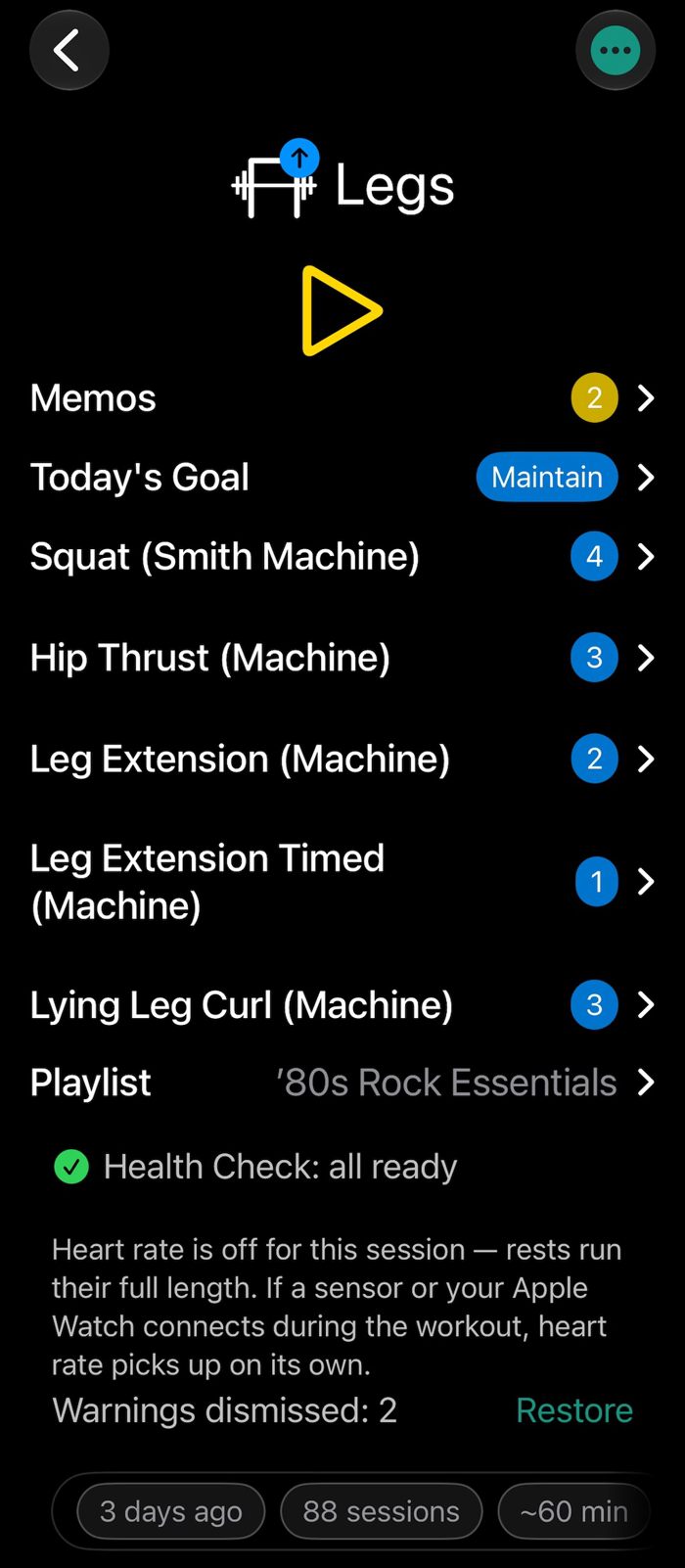
Open a routine and the day’s workout is on one screen: the session’s goal, each exercise with its number of sets, and the playlist you’ll hear between sets. One line tells you if something needs your attention, such as headphones, Watch, strap or music, and it stays empty when nothing does. Below that you see when you last did this routine, how many times you’ve done it, and how long it usually takes.
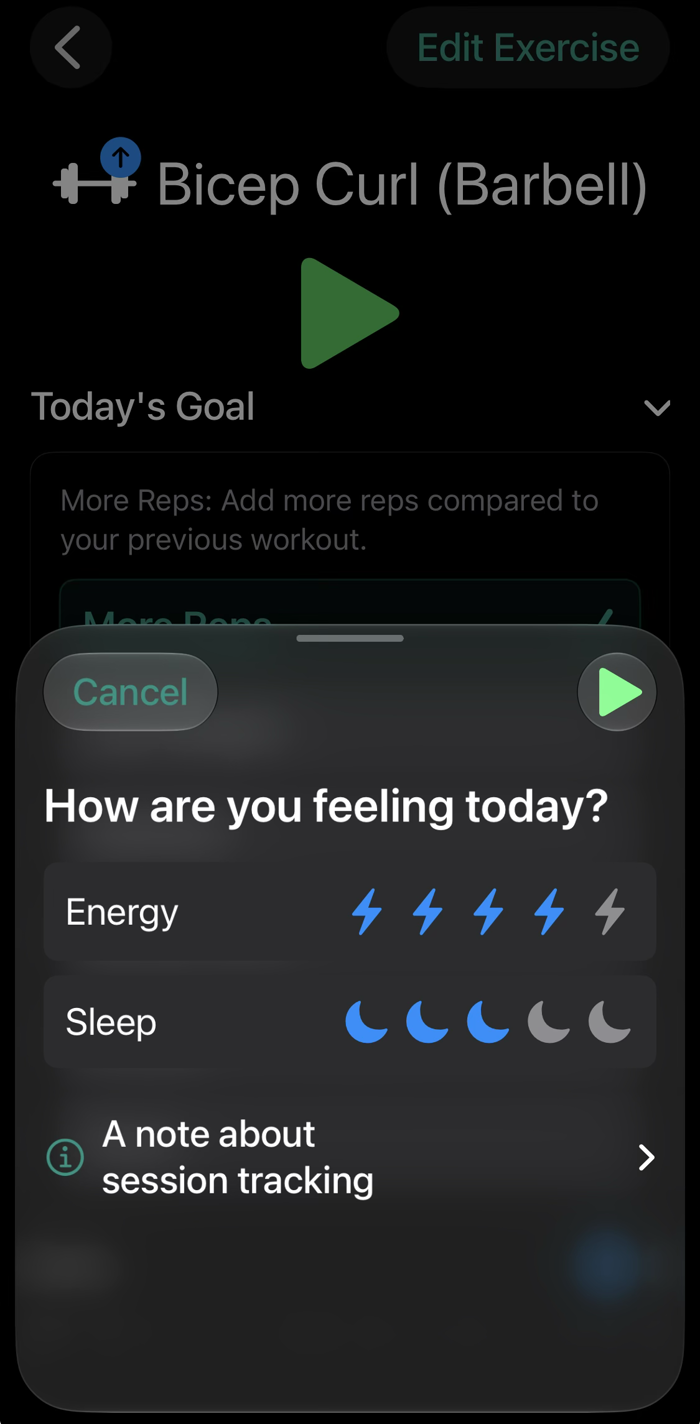
Tap an exercise if you want to adjust today’s targets. Otherwise, press play. A short check-in asks for whatever you’ve chosen to track: energy and sleep, and optionally pain, alcohol, medication, body weight, or a comment to keep with the workout. It asks once per workout, not once per exercise. Then the music starts.
The player
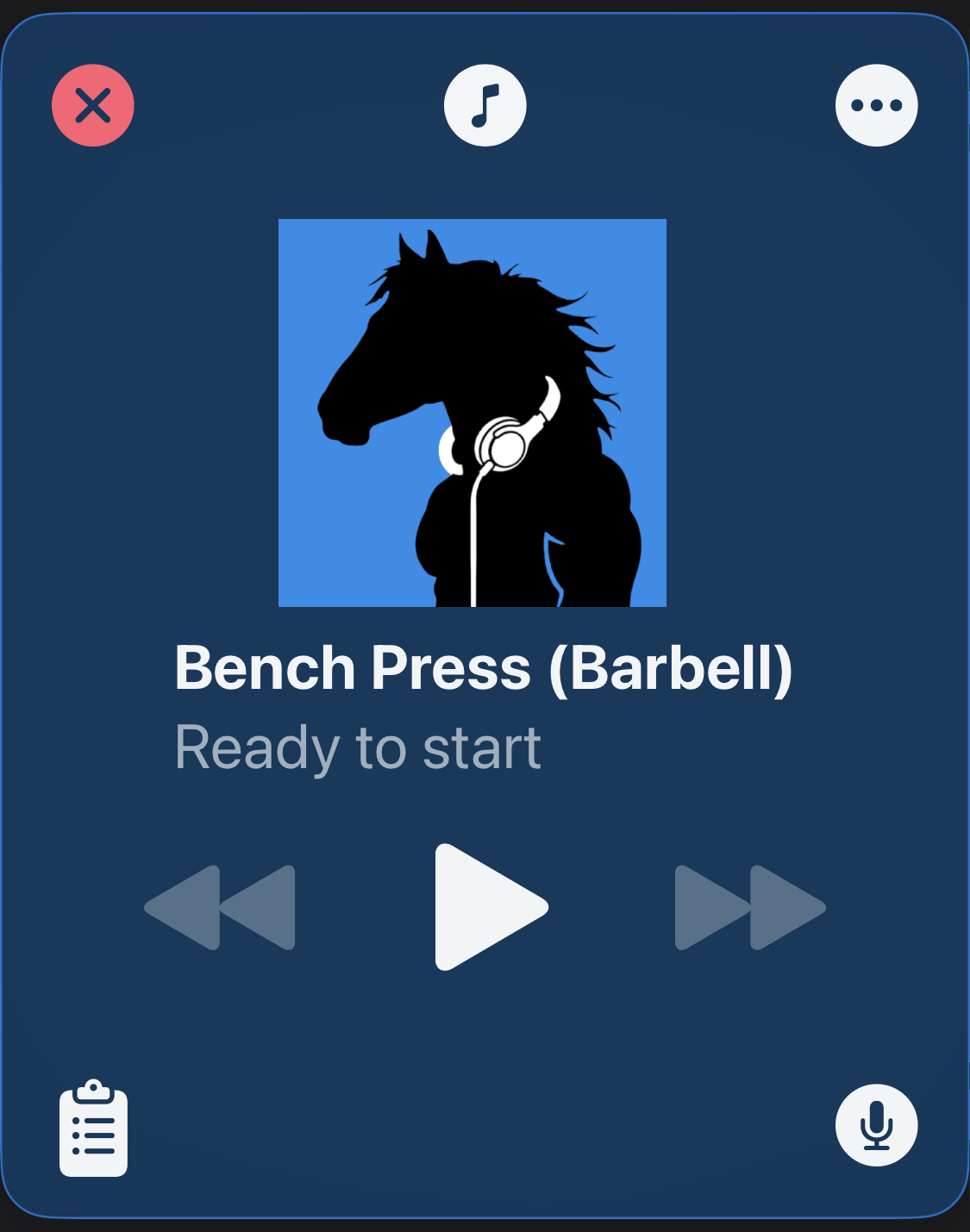
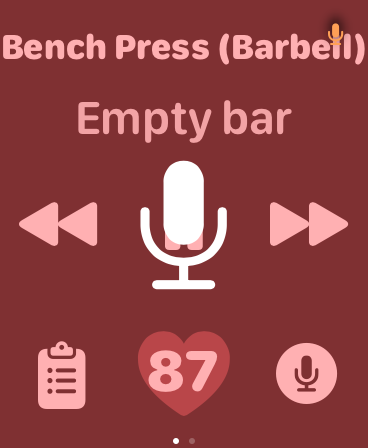
Each exercise plays like a track. The screen shows where you are in the workout, with play, back and forward to move through it, as you would through an album. Since the app talks to you through your headphones, their buttons are the obvious way to answer: play, back and forward, without looking. Most of the time they’re all you use. The Watch is there when you need more than three buttons, Siri when your hands are full, the Lock Screen when it’s closest, and the phone screen last.
Back replays your targets when you’ve already forgotten them. Forward ends a rest that’s dragging on; it skips the rest, not the exercise. Pause gives you time to catch your breath. The two corners hold the set log and the mic. The music note in the middle is mute: it silences the music, clip and playlist alike, and the voices keep talking. Use it when you need to hear the gym or take a call without losing your place. Mute is on the Watch and on Siri too.
Two voices
Everything you hear comes from one of two voices. The Announcer is the app’s own voice. It gives the reps, load, records and what’s next, in a voice you choose from the ones on your iPhone. iOS has high-quality voices that most people never download, and the app shows you where to get them. The Coach speaks your notes in your own voice, or in your coach’s if they recorded them. With two voices, you always know whether it’s the app talking or a person.
Under the bar
Press play on an exercise and three things happen in order, every set.
Guidance. The app tells you the reps to chase, the load as plates to add per side, the record to beat, and any note you or your coach attached to the exercise. It keeps this short and sticks to what matters for this set.
Your clip. Then the music you pinned to the exercise takes over: the thirty seconds of the right song, on repeat for as long as the set lasts. The drop comes when you start the set, not when shuffle gets there.
Recovery. When you rack the bar, your own playlist comes back at a lower energy while the rest timer runs. Before it ends, the app tells you what’s next and what to change (“Add 5 kg per side.”) so you walk to the bar ready. If you’re ready early, press Forward.
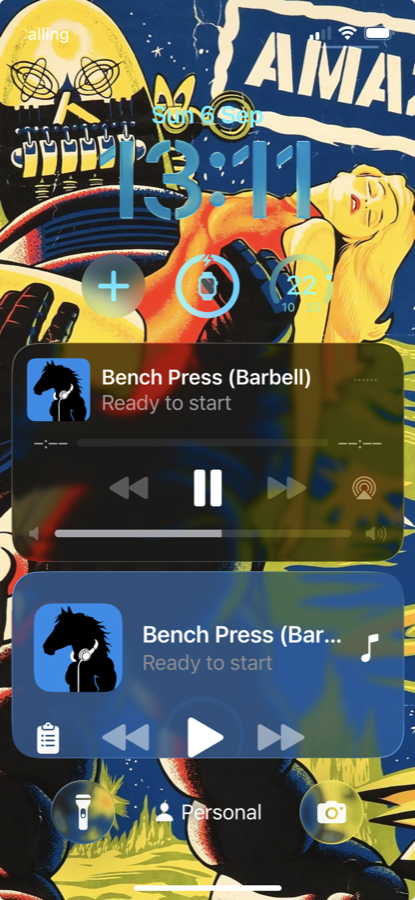
The next-set call also shows on your wrist and on the Lock Screen, with the countdown, so you don’t have to look at the phone to know where you are.
Logging a set
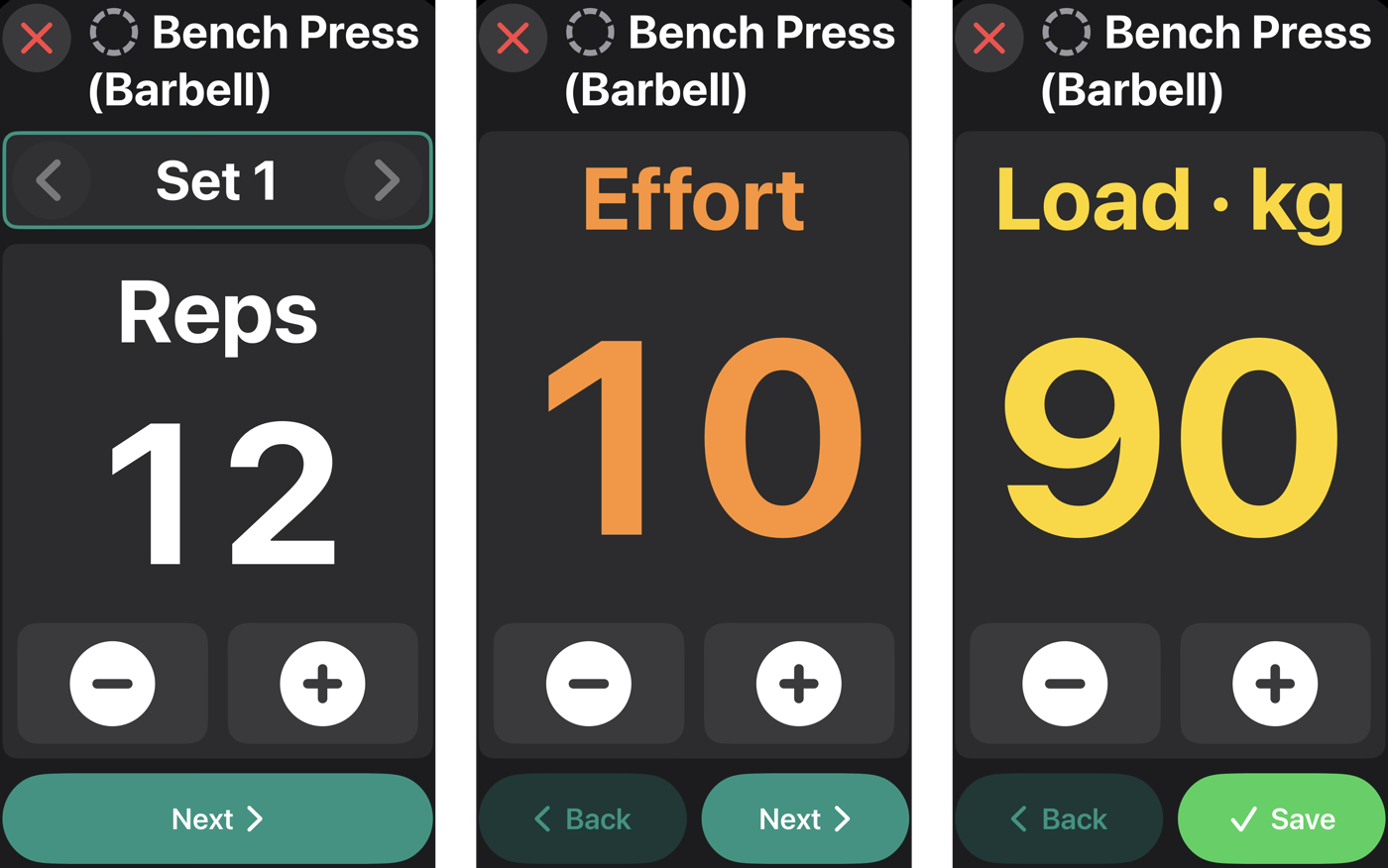
When the set goes to plan, there’s nothing to type: it’s logged as planned. When it doesn’t, say two reps short or a heavier bar than you meant, a few taps on the phone or a turn of the Watch’s crown correct the reps, the load and how hard it felt, and the app adjusts what it asks for next. The phone shows one value per screen, in large type, with a minus and a plus: reps, then effort, then load. Effort only comes up when you reached the top of your rep range. Short of it, the set already counts as a maximum effort.
A superset is one track with several movements. It runs through the same work and recovery as any exercise; you just log each movement. Timed holds count down instead of counting reps. If you change your mind mid-workout, you can skip an exercise, move one up or add one back from the queue, on the phone or the Watch.
Heart rate

Something worth remembering? Say it.
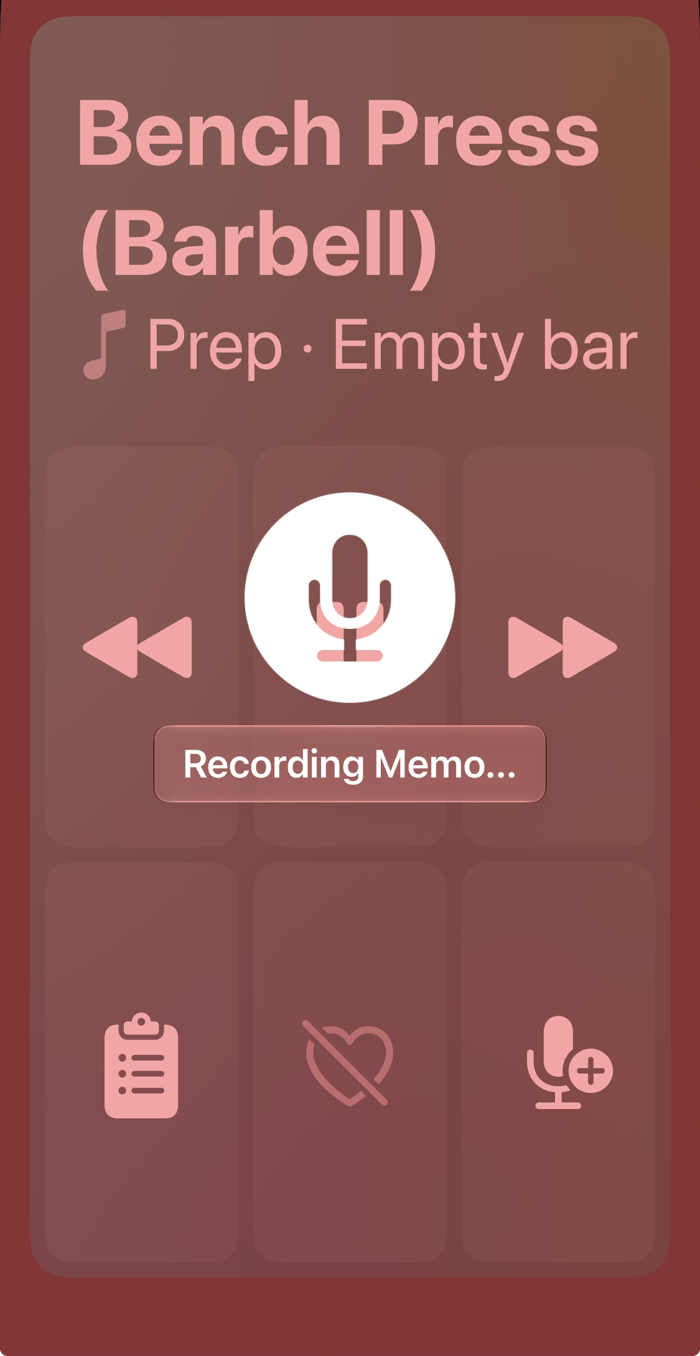
A twinge, a grip change, a bar that felt light: as soon as it crosses your mind, hold the mic on the phone or the Watch, say it and let go. There’s no typing, no menu and no small target to hit, because your hands are sweaty and shaking. Then forget about it and get back under the bar.
Memos are different from notes. Notes are what you prepare: cues the app speaks at the right moment. Memos are what you catch: the thought you’d otherwise lose between the rack and the car park. They come back at the top of the routine, before and after every workout, until you delete them. Act on them, by turning one into a note, changing a load or booking the physio, and then clear them.
Learning the app while you lift
Your first few workouts come with short spoken tips, such as how Forward works, what the Watch can do and why the load is in plates. You hear them one at a time, when they’re relevant, and they stop once you’ve got the idea. They’re in a high-quality recorded voice. There’s nothing to read before your first session.
The wrap-up
The wrap-up comes once, at the end of the workout, not after every exercise. Most days you’ll glance at it and close it: the sets are logged and the proposals for next time are sensible. Those proposals are your progression strategy applied to the sets you just did. The wrap-up is there for the other days.
A word to your future self. Decided mid-squat that next time you’ll try a closer stance, or drop the top set? Write it under Next Session Goal, and the app gives it back to you when you next open this routine, a week from now, when you’d otherwise have forgotten you decided anything. That’s what it’s for.
The rest is a tap away, and you’ll rarely need it. Your memos, both the ones you just caught and any still waiting. Every set, if the log needs correcting. The tracking, periods and events that will show up in your reports. And overrides for an unusual day: keep a workout without having it count, for example when you tried a new technique or a range you don’t train, so it doesn’t skew your trends or set a record; leave a session out of your streak; or, if it really was nothing, discard it.
None of it is final. You can change anything here later, under Reports, for any session you’ve ever done.
[asset: wrap-up shot from a REAL completed session, multi-exercise, no warnings]
Open this page on your iPhone, or point its camera at the code.
On your phone: get TestFlight, open it, tap through Apple's welcome screens, then Accept and Install.
Free during the TestFlight beta. What's TestFlight?
Beta full? Get in touch.